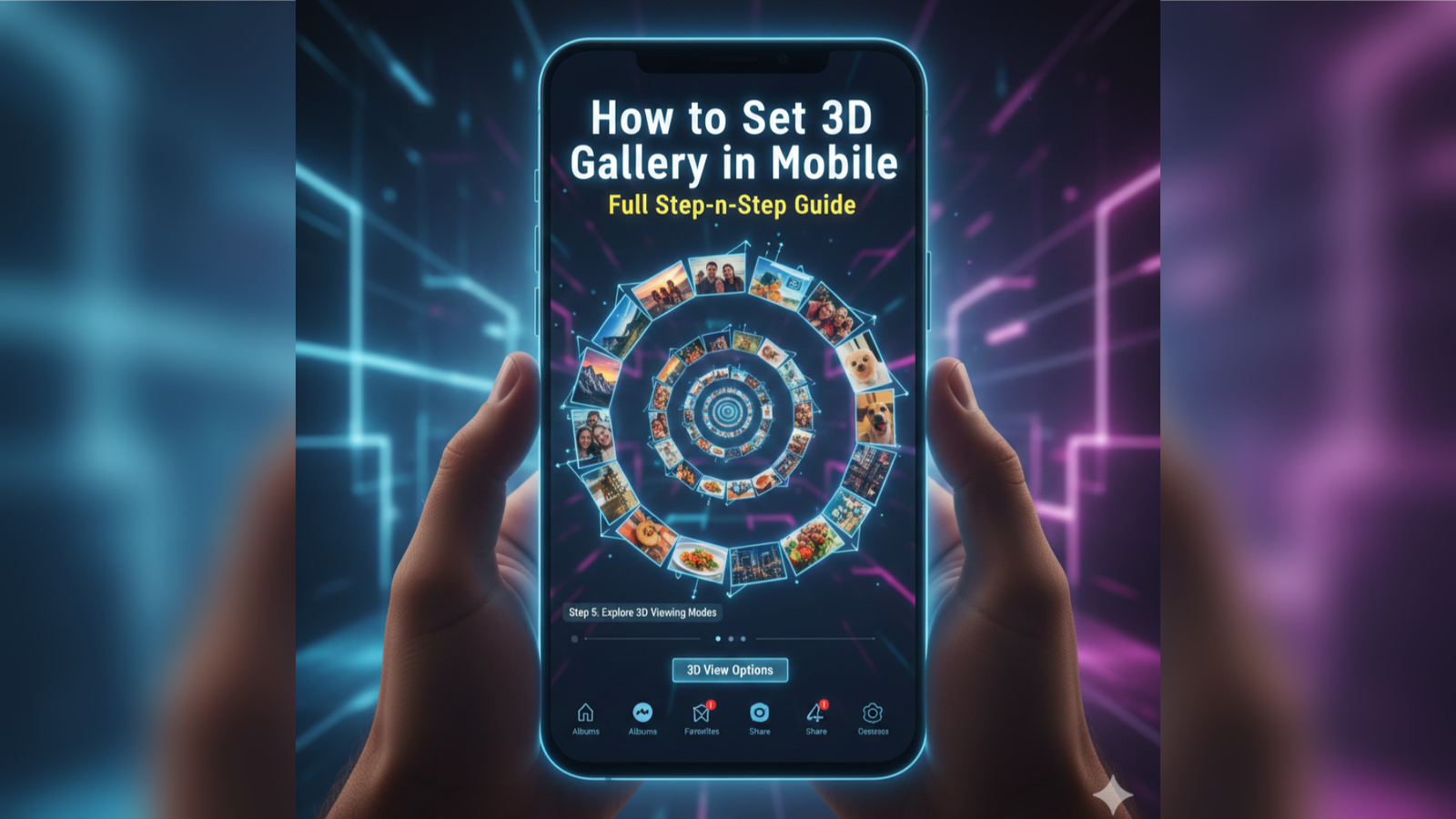
A 3D Gallery is a modern visual feature that lets you view your photos with depth, motion effects, and interactive transitions. Today, many Android devices and apps support 3D-style galleries that make browsing photos more immersive. If you want to set up a 3D gallery on your smartphone, here is a simple, complete, and beginner-friendly guide.
1. Understanding What a 3D Gallery Is
A 3D gallery uses special animations, layered transitions, and visual effects to display images in a three-dimensional style. Unlike the normal photo viewer, a 3D gallery gives you:
-
Rotating image effects
-
Depth-based scrolling
-
Slide and cube-style transitions
-
Floating and stacked photo layouts
These enhanced visuals make your mobile gallery look stylish and professional.
2. Choose the Right 3D Gallery App
Since most default mobile galleries do not come with built-in 3D options, you need a third-party application. Here are some popular and reliable choices:
-
3D Gallery
-
Piktures Gallery
-
F-Stop Gallery
-
A+ Gallery with 3D transitions
When selecting an app, check ratings, file size, privacy settings, and animation features.
How to Install
-
Open the Google Play Store.
-
Search for “3D Gallery App”.
-
Choose any trusted and high-rated app.
3. Set Up Your 3D Gallery
After installing the app, follow these steps:
Step 1: Give Necessary Permissions
-
Storage access
-
Media access
Tap Allow to continue. Without permission, the app cannot load your photos.
Step 2: Import Your Photos
Most apps automatically scan the device and show your photos in albums. If not:
-
Tap Add / Import Photos
-
Select images from internal storage or SD card
Step 3: Choose 3D View Mode
Depending on the gallery app, you may see options like:
-
3D Cube View
-
Carousel View
-
Spiral or Stack View
-
Depth Scroll
Tap your preferred display theme to activate it.
Step 4: Apply 3D Transitions
Go to Settings → View Style → Transitions and select animations such as:
-
Flip
-
Rotate
-
Zoom
-
Slide with depth
These transitions change how photos move when you swipe.
4. Customize the Gallery for Better Experience
To make your 3D gallery look stylish:
-
Enable Dark Mode
-
Adjust background blur
-
Turn on motion effects
-
Set slideshow timing
-
Use 3D wallpapers inside the app
Some apps also support gesture controls for zoom and rotate.
5. Set 3D Gallery as Default
To make it your main gallery:
-
Open Settings → Apps
-
Tap Default Apps
-
Select Gallery App
-
Choose your installed 3D gallery
Now, every image will open in the 3D viewer by default.
Conclusion
Setting a 3D gallery on your mobile is easy and takes only a few minutes. With the right app, attractive transitions, and proper customization, you can turn your regular photo viewer into a dynamic, modern, and visually engaging 3D gallery. Whether you want stylish album browsing or a premium viewing experience, a 3D gallery app instantly transforms your mobile into a more creative and interactive device.